Firebase AI Logic: Bring Gemini Directly to Your Frontend
Nov 12, 2025
Artificial intelligence is transforming the way we build applications. However, integrating a generative model—such as Gemini—usually involves configuring APIs, credentials, and a backend that acts as an intermediary.
That is where Firebase AI Logic comes in: a new way to use AI directly from your app, with just a few lines of code and all the power of the Firebase ecosystem.
In this article, we will explore what Firebase AI Logic is, how to enable it step by step, and build an app where we can generate recipes using Google's models.
What is Firebase AI Logic?
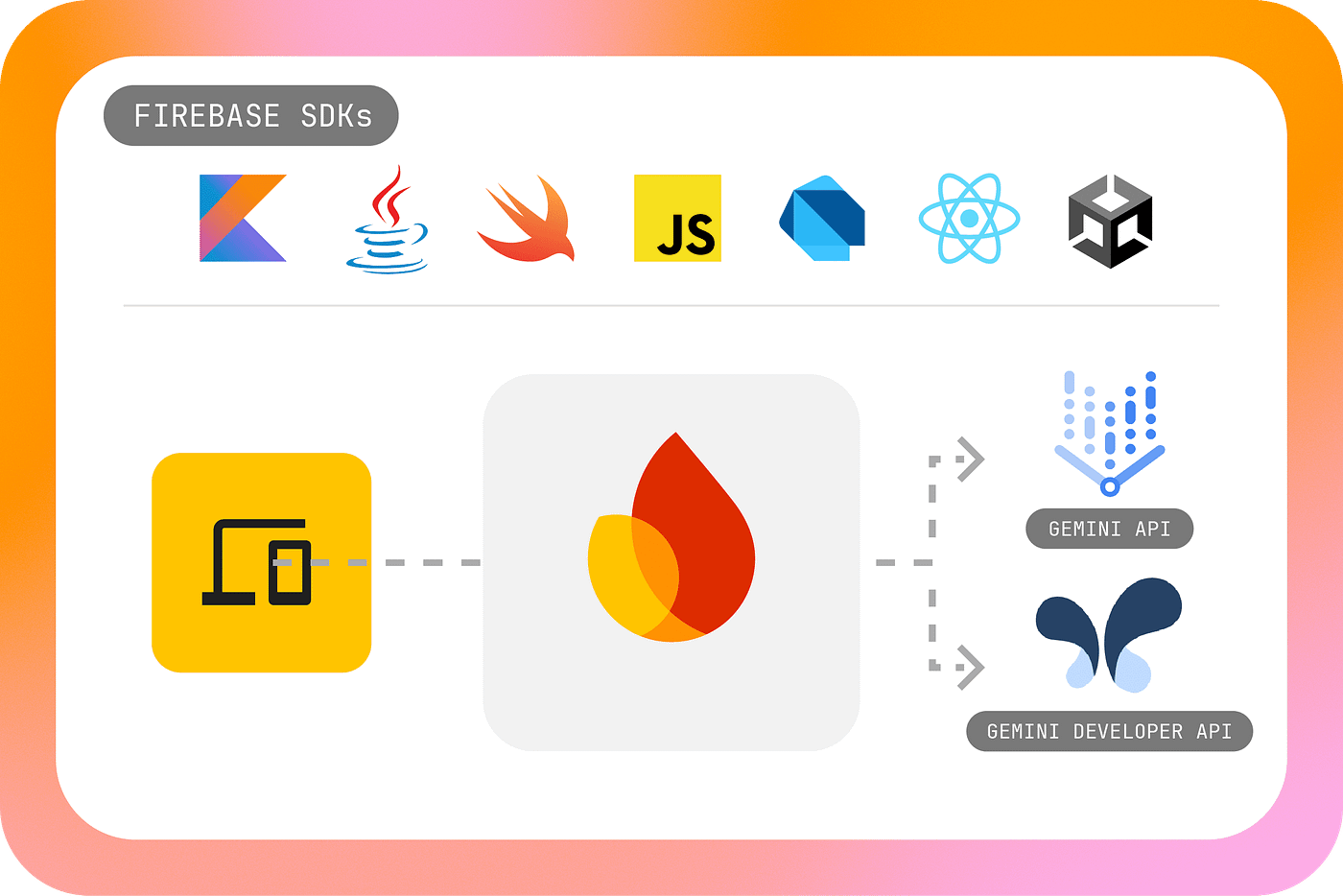
Firebase AI Logic simplifies bringing AI capabilities directly to the client (client-side), without needing a custom backend.
It supports Android, iOS, Web, Flutter, and Unity, allowing you to integrate generative AI experiences into almost any type of Firebase project.
Key Features
- Access to Gemini: lets you easily connect to Google's models to generate text, images, or multimodal responses, all from your Firebase environment.
- Hybrid AI (Hybrid Inference): runs AI directly on the device (for example, with Gemini Nano on Chrome or Android). If that isn't possible, inference automatically falls back to the cloud model, balancing performance, privacy, and costs.
- Monitoring: from the Firebase console you can access usage metrics, performance, and debugging tools.
- Firebase Integration: integrates with other Firebase services like Firebase Remote Config, App Check, and Cloud Storage.
For this example, we will replicate part of the healthy recipes application I built a few months ago with Genkit, where I showed how to use Gemini to generate recipes.
If you haven't read that article yet, you can check it out here: Food Fit: tu partner para tener una alimentación saludable con Genkit.
This time, we will see how to achieve something similar directly from the frontend, with no intermediate backend.
Now that we understand what Firebase AI Logic does and its main advantages, let's put it into action by setting up our environment.
Initial Setup
Before getting started, make sure you meet the following requirements:
- Have a Firebase project configured.
- Enable
Firebase AI Logicfrom the Firebase console (in theAI→AI Logicsection). - Install the SDK for your environment (in this case,
Web).
Environment Initialization and Dependencies
Before using Firebase AI Logic, we must initialize Firebase and obtain access to the SDK. In this case, we also configure the Vertex AI backend, which will be responsible for executing requests to the Gemini model.
import { Injectable } from '@angular/core';
import { initializeApp } from "firebase/app";
import { getAI, VertexAIBackend } from "firebase/ai";

// We initialize the Firebase app using the environment configuration
const firebaseApp = initializeApp(environment.firebaseConfig);

// We obtain an instance of the Firebase AI module.
// This is where we define the backend to be used.
const ai = getAI(firebaseApp, {
  backend: new VertexAIBackend()
});
The VertexAIBackend class acts as the bridge between your app and Google Gemini models.
With Firebase and Vertex AI initialized, we can continue configuring the generative model we will use in the app.
Configuring the Generative Model
Now we configure the Gemini model we will use to generate the recipes. Here we use the cloud model and also configure the output structure.
const model = getGenerativeModel(ai, {
  model: 'gemini-2.5-flash-lite',
  generationConfig: {
    responseMimeType: "application/json",
    responseSchema: outputFoodItemSchema
  }
});
Now that we have defined the model, we need to specify what the structure of the data we receive will look like.
Defining the Output Schema
To structure the model's response, we define a schema using Schema. This ensures the response is formatted as JSON.
const outputFoodItemSchema = Schema.object({
  properties: {
    recipes: Schema.array({
      items: Schema.object({
        properties: {
          name: Schema.string(),
          description: Schema.string(),
          ingredients: Schema.array({
            items: Schema.string()
          }),
          nutritional_information: Schema.object({
            properties: {
              cal: Schema.number(),
              carbohydrates: Schema.number(),
              fats: Schema.number(),
              sodium: Schema.number(),
              cholesterol: Schema.number(),
              proteins: Schema.number()
            }
          }),
          preparation_time: Schema.string(),
          level: Schema.string(),
          preparation: Schema.array({
            items: Schema.string()
          })
        }
      })
    })
  }
});
This schema guarantees that the model's response arrives in a consistent format, ready to be used directly in the frontend.
Once the text model is ready, we can do the same to generate images with Imagen 4, leveraging the same Firebase AI Logic workflow.
Configuring the Image Model
In addition to the text model, Firebase AI Logic allows generating images with Imagen 4.
const modelImage = getImagenModel(ai, {
  model: 'imagen-4.0-generate-001',
  generationConfig: {
    aspectRatio: ImagenAspectRatio.SQUARE,
    imageFormat: ImagenImageFormat.jpeg(100),
    numberOfImages: 1
  }
});
With this configuration, we tell the model that we want an image with a 1:1 aspect ratio, a compression quality of 100, and only one generated image.
Creating the GenAiService
Finally, we encapsulate all the logic in an Angular service so we can easily inject it into any component.
export class GenAiService {

  const LIST_FOOD_BY_INGREDIENTS_PROMPT = (payload: { ingredient: string; quantity_people: number }) => `
  Eres el asistente de inteligencia artificial más conocedor del rubro gastronómico en el Perú.
  Genere un lista de 4 recetas peruanas o similares para una persona que quiere alimentarse de forma saludable.
  Las recetas deben incluir los siguientes ingredientes: ${payload.ingredient}.
  En la matriz del las recetas, coloque las recetas como lo haría un recetario de comida.
  Dé a cada receta una descripción únicos.
  Las recetas deben ser saludables y equilibradas.
  Además que sean para ${payload.quantity_people} personas.
  Las recetas tiene que estar en español.
  La descripción de cada receta debe detallar el plato y si está inspirado en alguna cocina.
  `;

  const GENERATE_IMAGE_FOOD_PROMPT = (name: string) => `
  Genera una imagen de un plato de comida saludable llamado ${name}.
  `;

  // Generate recipes based on one ingredient and number of people
  async getRecipesByIngredients(payload: { ingredient: string; quantity_people: number }) {
    const result = await model.generateContent(LIST_FOOD_BY_INGREDIENTS_PROMPT(payload));
    const response = result.response;
    const recipesData = JSON.parse(response.text());
    return recipesData;
  }

  // Create an image of the food
  async generatedImageFood(payload: { food: string }) {
    const result = await modelImage.generateImages(GENERATE_IMAGE_FOOD_PROMPT(payload.food));
    const image = result.images[0];
    return image;
  }
}
Here you can see the power of Firebase AI Logic: you don't need to manage API keys or Google Cloud endpoints. The SDK handles authentication, execution, and response formatting automatically.
With the service configured, the next step is to use it inside a component and connect the UI to content generation.
Using the Service from the Angular Component
Now that our service is ready, we can call it directly from our component.
  generateRecipesByIngredient() {
    this.isLoading = true;
    this.listFood = [];
    const payload = {
      ingredient: this.formSearch.value.ingredient,
      quantity_people: 2
    }
    this.genAI.getRecipesByIngredients(payload).then((data) => {
      this.listFood = data["recipes"];
      this.isLoading = false;
    });
  }

  generatedImageFood(name) {
    const payload = {food: name}
    this.genAI.generatedImageFood(payload).then((data) => {
      this.detailFood.image = data.bytesBase64Encoded;
    });
  }
}
generateRecipesByIngredient()sends a prompt to the Gemini model to generate recipes based on the specified ingredient. Model responses arrive structured and safe thanks to theresponseSchemadefined earlier.generatedImageFood()uses theImagen 4model to create the dish image.
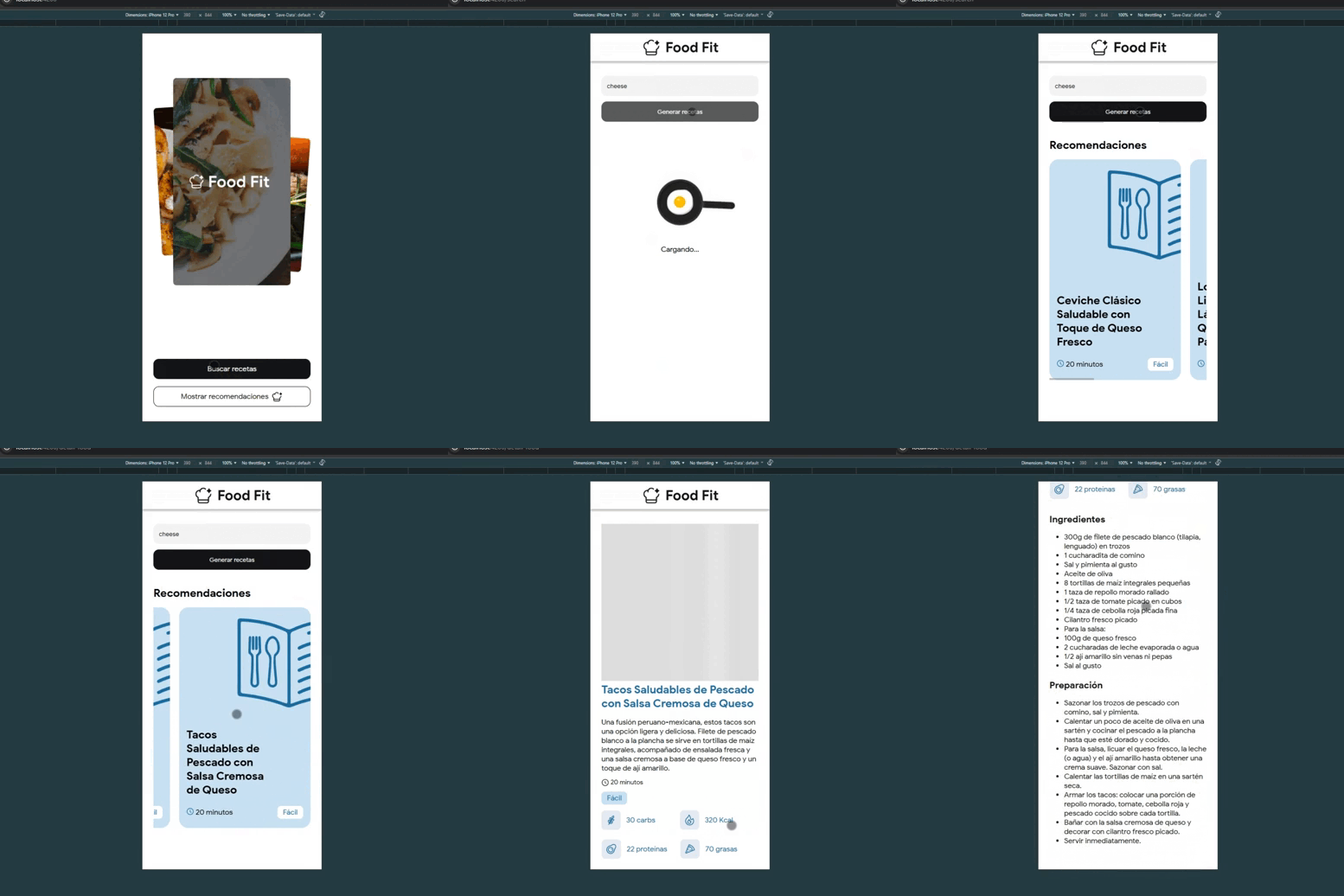
With this, we complete a working integration of Firebase AI Logic in an Angular app, from initial setup to direct consumption in the component.
You can explore the complete project code on GitHub: lperezp/food-fit-app (feature/add-ai-logic).
It includes all the code shown in this article, along with a small Angular UI for generating recipes and images with Gemini.
This first example demonstrates how simple it can be to bring generative AI to your frontend. If you are experimenting with Gemini, Firebase AI Logic is the ideal starting point to prototype ideas without friction.
In the next part, we will see how to strengthen security with App Check and how to leverage monitoring to understand real model usage in your app.